Master SnipIt.
From basic operations to useful techniques not everyone knows.
Learn how to drastically improve your text input efficiency on iPhone.
1. Quick Start
Just 3 steps to get started!
Register
Tap the button at the bottom right and select "New Snippet". Save frequently used phrases or addresses.
Copy
Just tap an item in the list. It's instantly copied to the clipboard, and you'll see a notification at the bottom.
Paste
Switch to LINE, Email, or any other app and "Paste".
That's it, input complete!
2. Master Guide
Discover useful features to get the most out of SnipIt.
Auto Date/Time Input (Text Expander)
Embed "magic codes" in your snippets, and they'll automatically convert to the current date
and time when copied.
Perfect for daily reports or meeting templates.
Basic Date & Time
| Code | Output Example | Description |
|---|---|---|
| {{date}} | 2026/01/11 | Today's Date |
| {{time}} | 16:55 | Current Time |
| {{yyyy}} | 2026 | Year (4 digits) |
Input
{{date}} report.
Output
2026/01/11 report.
Format Customization
Add format after colon : to customize
output.
| Code | Output Example | Use Case |
|---|---|---|
| {{date:MM/dd}} | 01/11 | Month/Day only |
| {{date:MMMM d}} | January 11 | Long format |
| {{date:E}} | Sat | Day of Week |
Input
Output
Date Calculation
Use + or - to output future
or past dates.
Input
Due Date: {{eom+1m}}
Output
Due Date: 2026/02/28
Other Utilities
{{uuid}}
{{random}}
{{clipboard}}
Reorder
Tap the icon at the top right to enter "Move Mode". You can freely drag and drop snippets/folders to reorder or move them to other folders.
Fast Search
Use the search bar at the very top to search not just titles but also the "body content". Instantly find what you need from a large collection of snippets.
App Lock
Turn on App Lock from "Settings" to require Face ID or Touch ID authentication on app launch. Useful for protecting private info like addresses and contacts.
Delete Items
Tap the icon at the top right to enter "Delete Mode". Tap the trash can button next to unwanted items to delete them.
3. Custom Keyboard
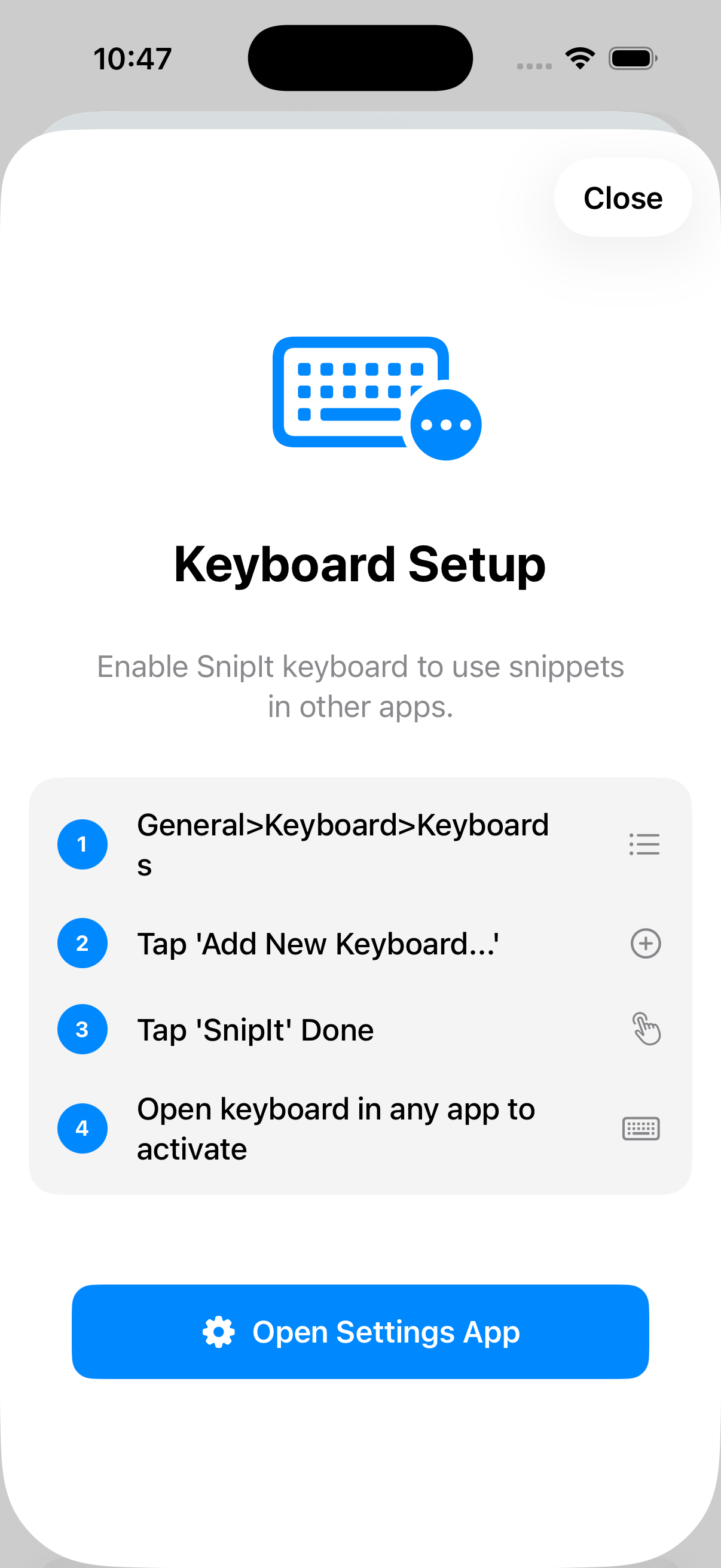
Input snippets anywhere without switching apps.
Add Keyboard
Go to General > Keyboard > Add New Keyboard...
and select "SnipIt".
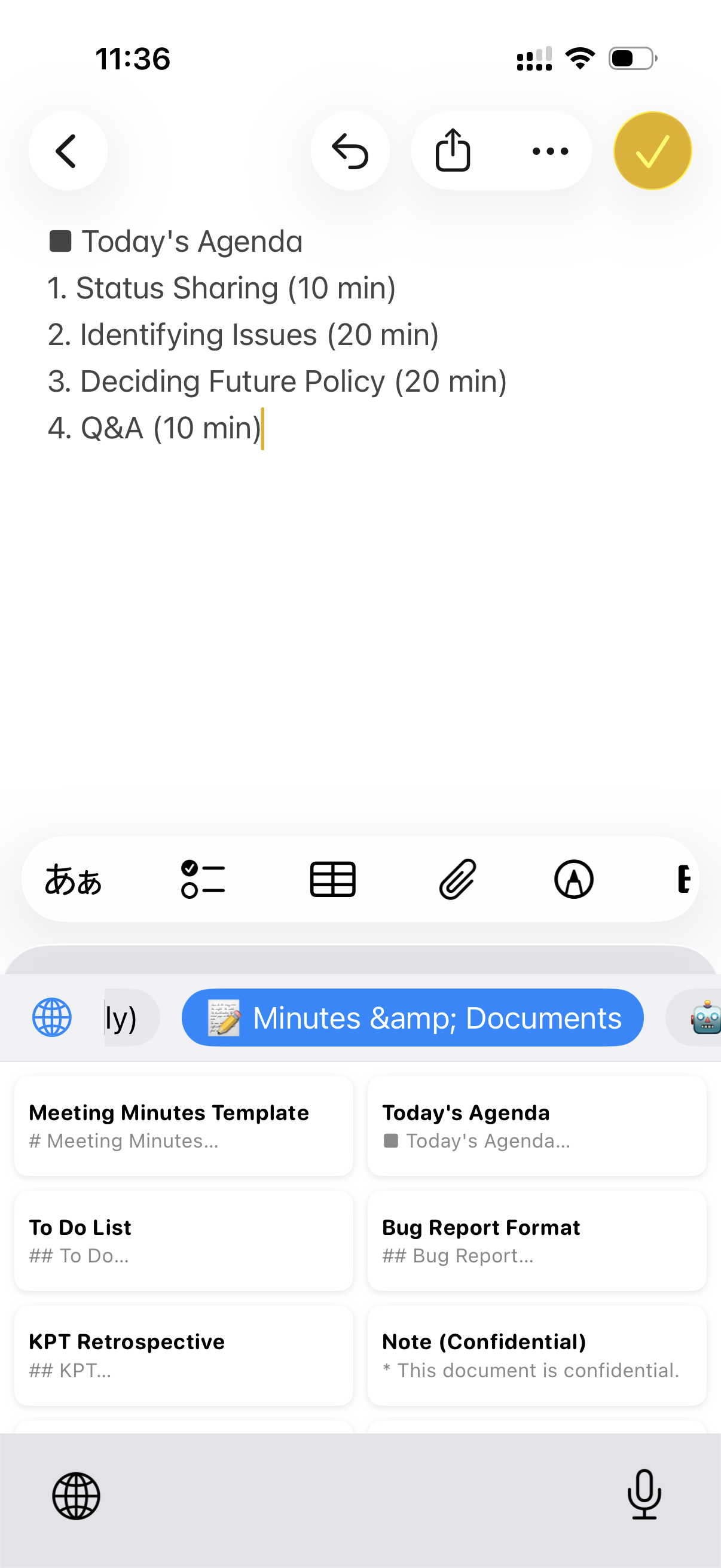
Switch & Use
Just tap a snippet to insert it!
4. Data Migration (Mac → iPhone)
Bring your "Clipy" snippets from Mac to iPhone.
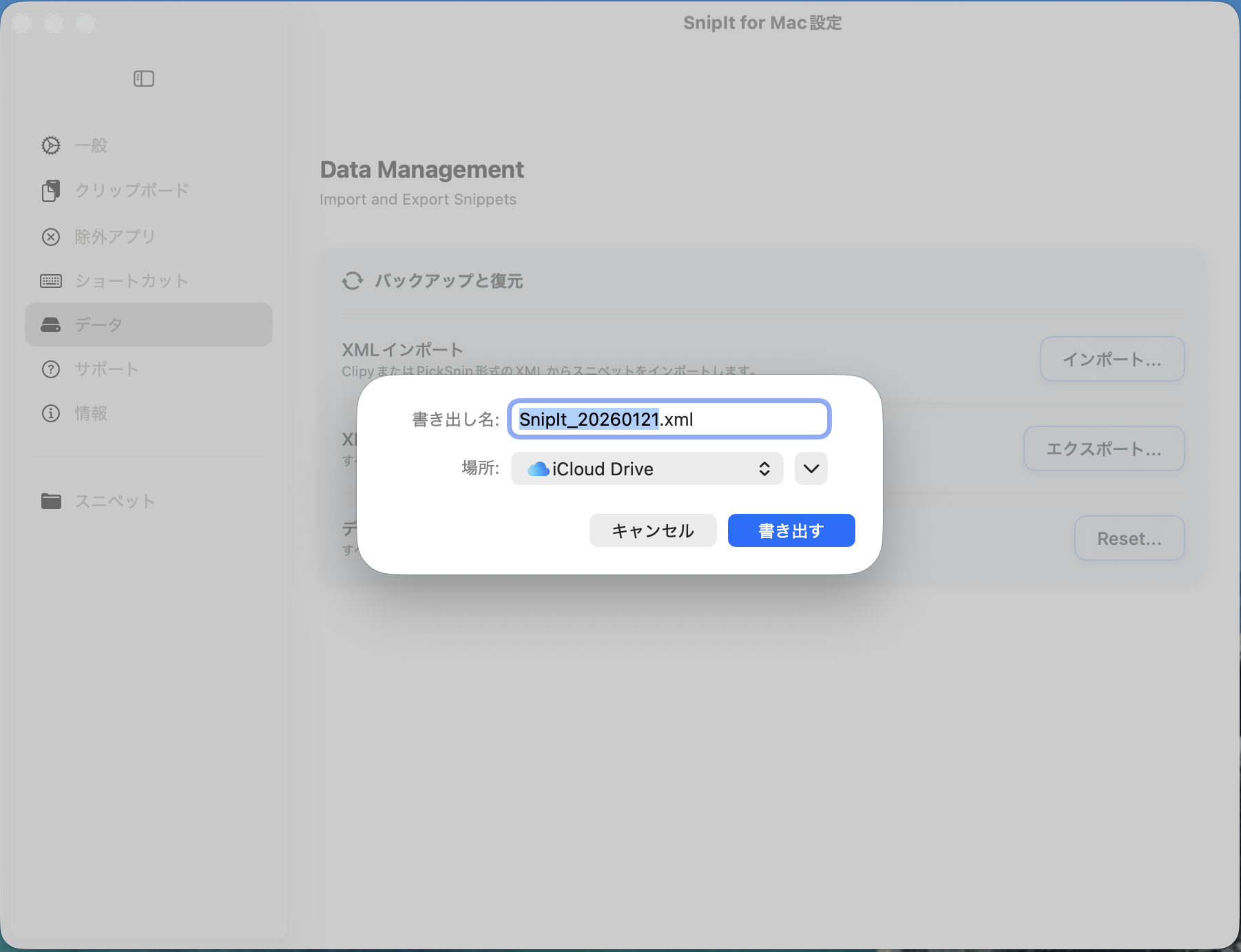
Export on Mac
Open "Edit Snippets" in Mac version of "Clipy" or "SnipIt". Export snippets as XML format.
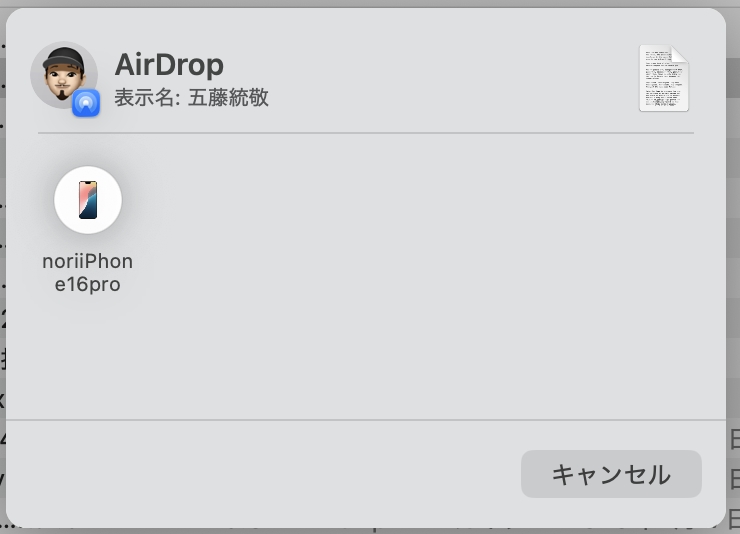
Send to iPhone
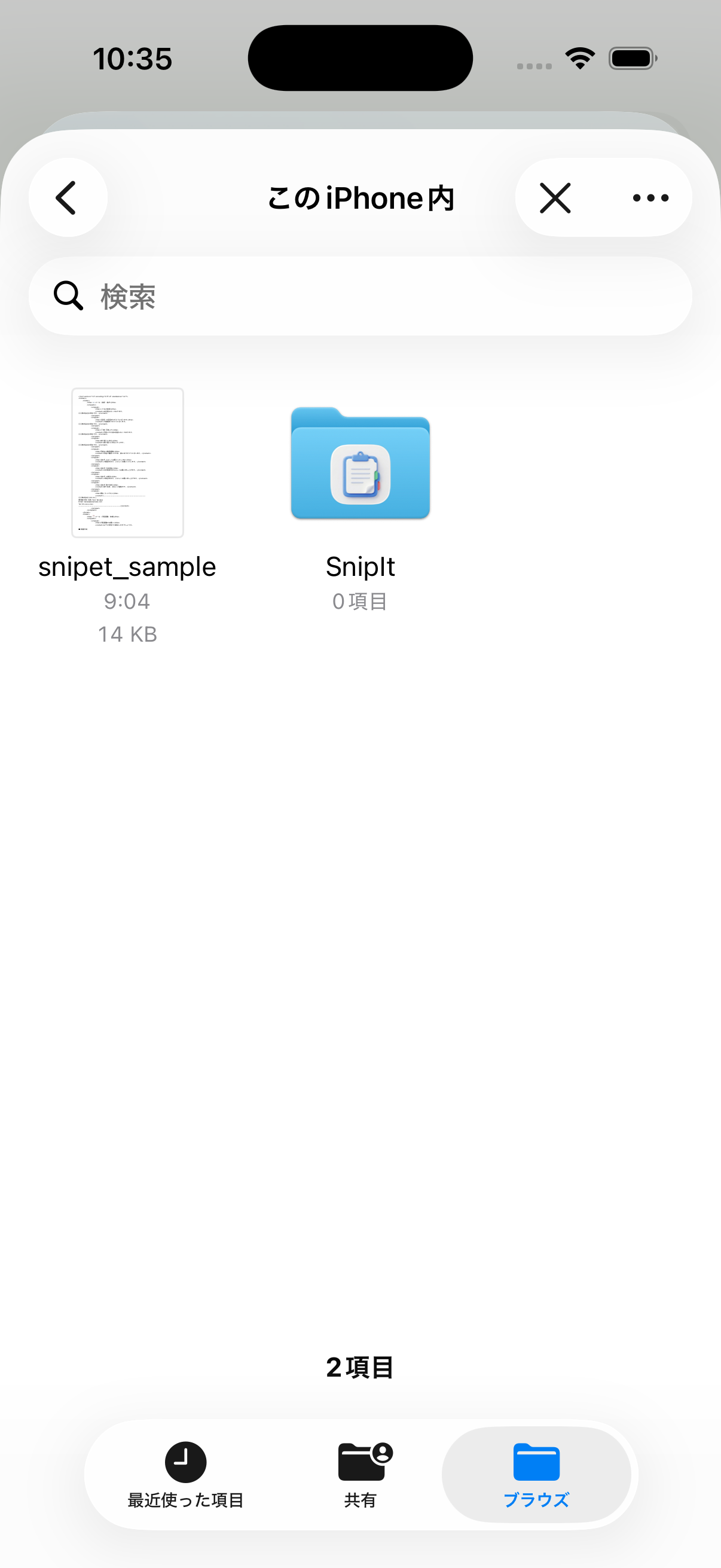
Send the XML file via AirDrop or iCloud Drive to your iPhone and save it to "Files" app.
Import in App
Open SnipIt Settings (), tap "Import XML", and select the file. Done!
XML import and unlimited snippet registration require an upgrade to SnipIt Premium (one-time purchase).
You can register up to 10 snippets for free, so please try out the app first.
5. Settings & Plans
Free vs Premium.
Free Plan
- Snippet Limit: Up to 10
- Create Folders
- Text Expander
- App Lock (Face ID)
SnipIt Premium
One-time purchase (Not a subscription)
-
Unlimited Snippets
-
XML Import (Mac Data Migration)
-
No Ads
Connect with Mac / iPad.
We are currently developing iCloud sync
functionality.
Snippets registered on Mac will simplify automatically sync to iPhone, making your latest
snippets available on any device.
FAQ
Q. Data transfer when changing models?
You can create a backup by "Exporting XML" from the settings. Import that file on your new
iPhone to restore.
Premium purchase info is tied to your Apple ID, so you can restore it for free using the
"Restore Purchase" button.
Q. I forgot my passcode.
For security reasons, there is no passcode reset feature. You will need to reinstall the app
(snippet data will be reset).
We recommend backing up your data regularly via XML export.
Q. Can I type directly from the keyboard?
Currently, you need to open the app to copy & paste, but we are planning to implement a "Custom Keyboard Extension" in a future update. Stay tuned!
Q. When is the Mac version coming?
It is currently under active development. We plan to deliver it as a native app optimized for the latest macOS, satisfying even existing Clipy users.